Xero invoice reminders: what to automate and when to follow up yourself
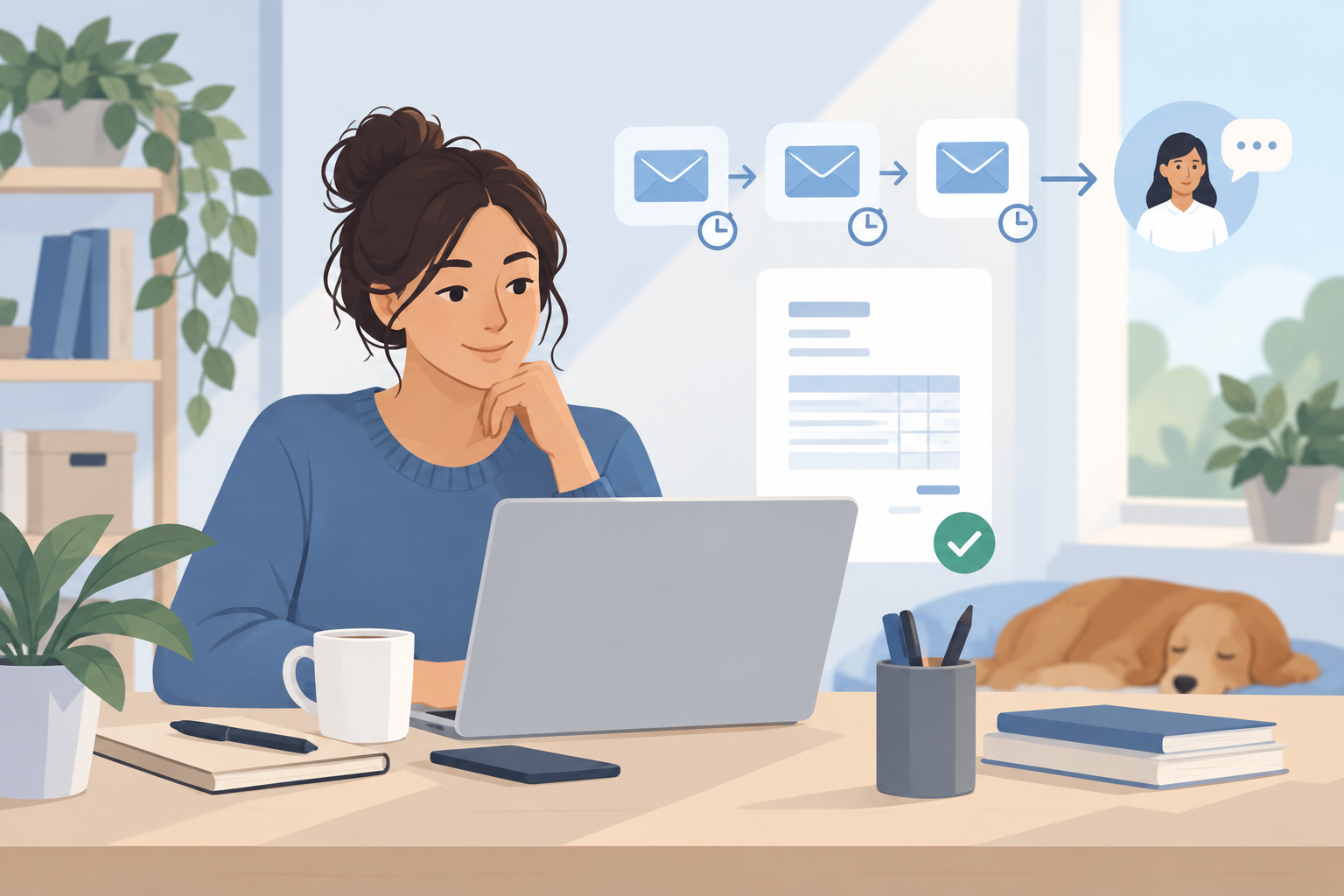
Sunday-night admin shouldn’t include an apology
Picture a familiar end to the working week. The jobs are finished, the ute is unpacked and you’re checking overdue invoices before Monday.
You send a client a payment reminder. They reply with a screenshot: they paid on Thursday. Another client says they’re still waiting for you to fix an invoice detail. Neither needed another nudge.
Now you’re checking bank transactions and writing apologies instead of closing the laptop.
For Australian small-business owners, Xero invoice reminders can take routine chasing off the list. But they need clear rules. Automate the ordinary reminders. Handle payments, disputes and changed arrangements with care.
Here’s how we’d plan that split.
Why the payment check matters as much as the reminder
An overdue invoice isn’t always an unpaid invoice.
A payment might be sitting in your bank account without being matched to the invoice. A client might have paid several invoices together. Or a credit note may still need to be applied.
If Xero still shows an amount owing, an automated reminder can chase money that has already arrived.
The cost is more than an awkward email. You spend time searching transactions, answering replies and checking with your bookkeeper. Meanwhile, genuinely unpaid invoices still need attention, and your own bills don’t wait.
We wouldn’t promise a set number of hours saved. A useful starting point is to note how long you spend checking and chasing invoices this week. Then separate routine reminders from cases that need a conversation.
1. Get the invoice basics right first
Reminders won’t fix an invoice that went to the wrong person or doesn’t explain the charge.
Before switching them on, check:
Recipient: Does the invoice go to the person who actually pays it?
Details: Are the business name, billing email and any required purchase order number correct?
Description: Can the client recognise the work or purchase?
Due date: Does it match the payment terms you agreed?
Payment instructions: Are the bank details and payment options correct?
Delivery: Was the invoice sent, rather than left as a draft?
For a trade business using ServiceM8 alongside Xero, also check which system sends the original invoice and which sends reminders. Two tools chasing the same bill can make a simple process feel messy.
Choose one place to manage reminders, and make sure replies reach someone who can help.
2. Plan a short reminder sequence
Xero’s invoice reminder settings let you schedule reminders around invoice due dates. Review the timing, wording and available exclusions before enabling them for your business.
Don’t simply accept a sequence because it’s already there. Match it to your payment terms and how your clients pay.
A sensible starting plan might be:
An optional reminder before the due date. Useful if clients need time to arrange payment. Skip it if it would add unnecessary noise.
A friendly reminder after the due date. Point to the invoice and ask the client to flag any issue.
A later follow-up. Ask for a payment update or an expected payment date.
A personal review. Stop repeating the same message and decide whether to call or write directly.
These are stages, not fixed deadlines. Leave reasonable breathing room between them. A client paying through an accounts team may need a different approach from a customer paying after a completed job.
Every sequence needs a handover point. More reminders aren’t always more effective.
3. Check payment records before chasing harder
Automated reminders depend on accurate invoice balances. Make bank reconciliation part of the routine, not something saved for the end of the month.
Before a personal follow-up, check:
Whether bank transactions are up to date.
Whether an incoming payment is waiting to be matched.
Whether the client used a different name or reference.
Whether one payment covers several invoices.
Whether a part-payment or credit changes the amount owing.
If a client sends remittance advice, treat it as a reason to check, not proof that cleared funds have arrived. Avoid marking an invoice paid just to stop a reminder.
Where your bookkeeper handles reconciliation, agree who checks uncertain payments and who contacts the client. One clear owner helps prevent two people chasing the same invoice.
You don’t need to inspect every invoice before every automated email. You do need reliable records and a way to hold reminders while a payment is being checked.
4. Pause reminders when there’s a dispute
A client who has questioned a charge doesn’t need another generic request to pay it.
Pause automated reminders for the affected invoice while you investigate. Xero provides controls for individual invoice reminders; check the invoice’s reminder status rather than assuming a note or email reply will stop the sequence.
Common reasons to pause include:
A disputed charge or incomplete work.
An incorrect purchase order or billing detail.
A payment that needs tracing.
An agreed payment plan or revised payment date.
Record three things wherever your team manages follow-ups:
Why it’s paused.
Who is sorting it out.
When they’ll review it.
Pausing should not mean forgetting. Once the issue is resolved, check the corrected balance and agreed terms before restarting reminders.
If part of an invoice is disputed, confirm the agreed treatment with the client and your bookkeeper. Don’t let an automated message demand the full amount without that context.
5. Keep automated wording calm and useful
A reminder should help someone act, not make them defensive.
For an early reminder, wording along these lines works:
Just a quick reminder that this invoice is overdue. If you’ve already paid, please reply with the payment date and reference so we can check our records. If anything on the invoice needs sorting out, let us know.
Include the correct invoice details and payment instructions using the options available in Xero. Check the template before switching it on.
Avoid threats, blame or extra fees that weren’t part of your agreed terms. Make sure replies go to a monitored inbox, not an address nobody checks.
6. Know when a person should take over
Follow up yourself when a client has replied, missed a payment promise, raised a concern or stopped responding to the routine sequence.
A useful personal message is specific:
We’re following up on the outstanding invoice for the completed work. Is anything holding up payment, and can you confirm when we should expect it?
Check previous messages first. If a client already agreed a payment date with someone on your team, another automated demand undermines that conversation.
The aim is to find the blocker and agree the next step. Sometimes that’s a corrected invoice. Sometimes it’s a call to accounts payable. Sometimes it needs a separate debt-recovery decision, not another template.
What to do next
Start with your current overdue list. Separate invoices into ready for reminders, payment checks, and personal follow-up. Then review your Xero settings against those groups.
If the process crosses Xero, ServiceM8 and a shared inbox, we can help make the handovers clearer through systems and automation. For help keeping the wider setup tidy, see our technology partner service.
Book a free 30-minute chat. We’ll talk through where chasing gets stuck and what could be simpler. If you need our help, pricing is fixed and set on the first call, with no lock-in or surprise invoices.